
Multi-Active Filters: News and SEC Filings Guide



StockTitan's live feed filters used to give you one active filter at a time, like the channel selector on a radio. The updated system on Stock News Live and SEC Filings Live treats your saved filters like a row of light switches: you can leave several flipped on at once, and the feed shows every item that matches any active saved filter that has rules set. This guide walks through how the system works, how many saved filters your account gets, and the details that make the filters useful once you know them.
Before
- One active filter at a time
- Switching filters replaced the active view
- Hidden behind a single dropdown
Now
- Up to 5 saved filters, each in its own spot
- Toggle each one on or off independently
- Active saved filters with rules show as a count on the funnel icon
What's in this guide
- What changed and why
- Where the feature applies
- Where filters live: the funnel button
- Toggling filters on and off
- Editing a saved filter's rules
- The nine rule types inside each saved filter
- How many saved filters you get
- How active filters combine
- Small details worth knowing
- Frequently asked questions
What changed and why
Under the old design, picking a filter was an either-or choice. You could save several filters, but only one at a time was actually shaping the feed. Loading a different saved filter replaced the active one, so you could not keep a sector theme and a keyword theme active side by side without manually merging your filters.
The new system separates two ideas: a saved filter (your collection of rules with a custom name) and an active filter (whether that saved filter is currently shaping your feed). Each saved filter can be active or inactive, and you can switch them with a single click. Your rules never get overwritten when you toggle a saved filter off; they wait quietly until you flip them back on.
The simple way to think about it: your saved filters are reusable rule sets. Before, only one rule set could shape the feed at a time. Now several saved filters with rules can be active together, and the feed includes items accepted by any one of them.
Where the feature applies
The same saved-filter system is available on the Stock News Live Feed and the SEC Filings Live Feed. The screenshots in this guide show the news feed, but the important behavior is shared: active saved filters run together, empty ones are ignored, and the feed includes an item when any active saved filter with rules accepts it.
News filters and SEC filings filters are saved separately because the two feeds have different rule types. The news feed includes news-specific tabs such as Keywords, Keywords Excl., and Tags. The SEC filings feed uses a filings-specific Form Types tab for forms such as 10-K, 10-Q, 8-K, Form 4, and Schedule 13, while keeping the same saved-filter and active-toggle model.
Where filters live: the funnel button
Open Stock News Live or SEC Filings Live and look at the top-right of the feed header, just above the first row. You will see a row of small icon buttons. The first one is a funnel, and that is the entry point for everything filter-related.

The funnel button. The small purple number shows how many active saved filters currently have rules set.
The number on the funnel is a quick reminder of how many active saved filters currently have visible rules in them. No number means either none are active or the active ones are still empty. A number is best read as a "filters are in play" signal, not a strict count of how many criteria the server applied. For example, if a saved filter's only rule is selecting all three exchanges (NYSE, NASDAQ, OTC), the server treats that as no exchange filter at all, so the feed can still be the full stream even when the badge shows 1.
Toggling filters on and off
Clicking the funnel opens a compact panel that lists every saved filter you have. Each row contains a green on or off toggle on the left, the filter's name in the middle, and two small icons on the right for managing it.
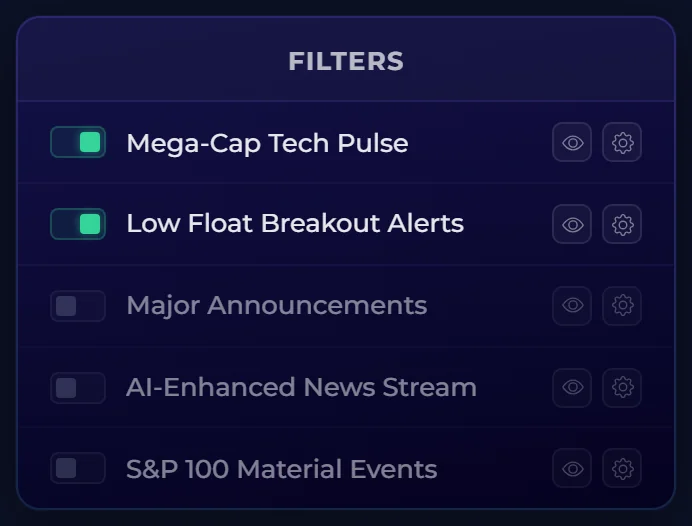
A Platinum account showing five saved filters. The first two are active (green), the others are turned off but still saved.
The two right-side icons are subtly different:
- The eye icon shows you a quick summary of that saved filter's rules without entering edit mode. Useful when you want to remember what a saved filter is set to before you turn it on.
- The gear icon opens the full editor for that saved filter, where you can change every rule.
You can flip multiple toggles on at once. The feed re-fetches as you toggle, so the change you make is reflected immediately, and the funnel's active count updates with you.
Editing a saved filter's rules
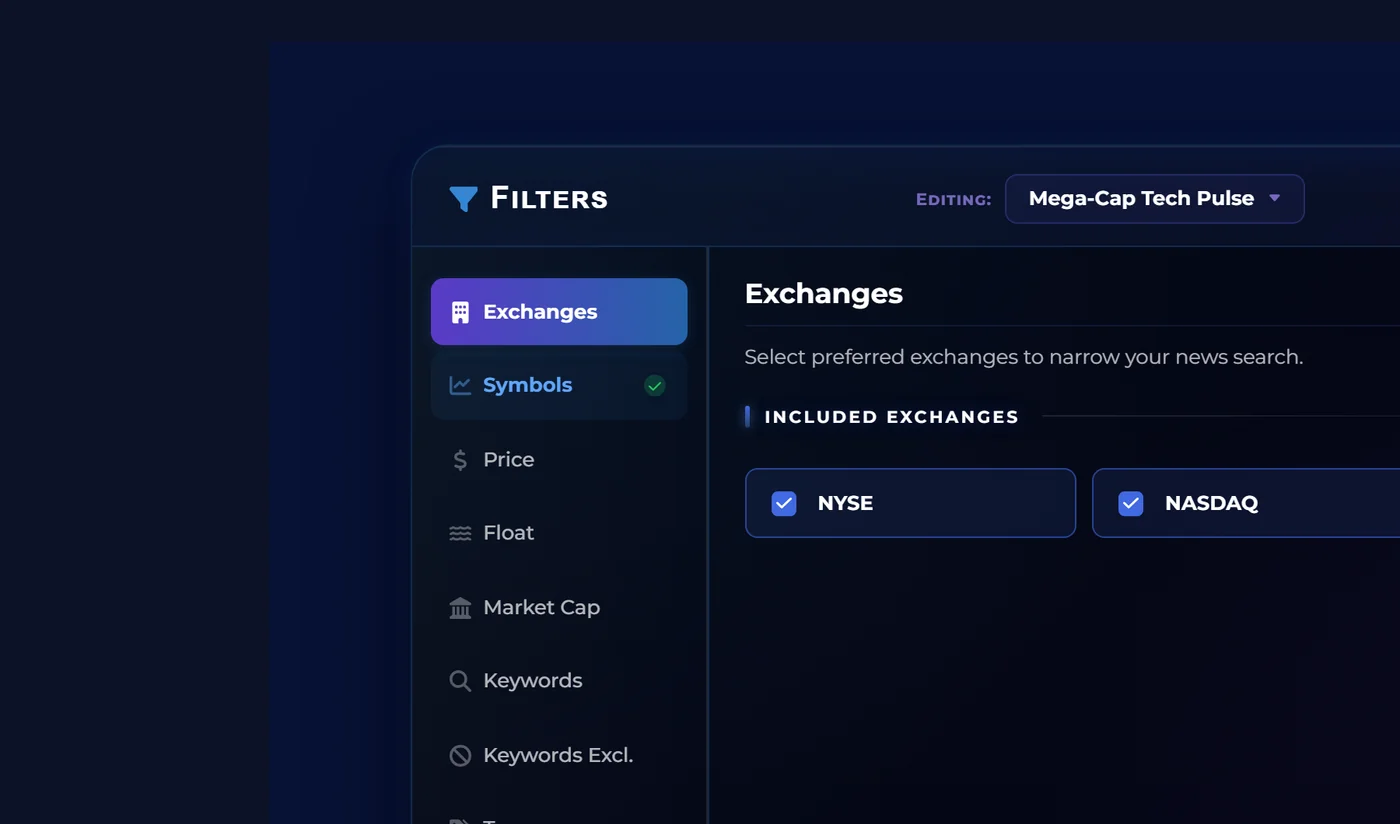
Click the gear icon on any saved filter and a draggable modal opens. The header tells you which saved filter you are editing, the left side is a tab strip that lists every kind of rule available, and the right side is the rule editor for the currently selected tab.
The editor for one of your saved filters. Tabs on the left, the chosen rule's controls on the right.
A couple of things in the header are easy to miss:
- The badge that reads "Editing: [filter name]" opens a dropdown. Use it to jump straight to another saved filter's editor without closing the modal. Your edits follow the saved filter you are editing, so switching is safe.
- The small green check mark next to a tab name (you can see one on "Symbols" and on "Rhea-AI" in the screenshot) means that tab already has rules set for this saved filter. It is the editor's way of showing you, at a glance, where the filtering logic actually lives.
The rule types inside each saved filter
Every saved filter can mix any combination of the tabs available on that feed. None of the tabs are required, and an empty tab means that rule simply does not narrow the feed.
On Stock News Live, each saved filter can use the nine news rule types below.
| Tab | What it does |
|---|---|
| Exchanges | Keep news from NYSE, NASDAQ, OTC, or any combination of them. |
| Symbols | Limit the feed to a list of ticker symbols you enter. Symbols inside one saved filter behave as alternatives, so it keeps news for any symbol in your list. |
| Price | Show news only for stocks trading inside a price range you define. |
| Float | Filter by the number of tradable shares available, expressed in millions. |
| Market Cap | Restrict to companies inside a market capitalization range, expressed in millions of dollars. |
| Keywords | Keep stories whose headline contains at least one of your keyword chips. By default, chips match as substrings; wrap a chip in double quotes to match the phrase on word boundaries. See our keyword filters guide for the full syntax. |
| Keywords Excl. | The mirror of Keywords: hide any story that contains the listed terms. |
| Tags | Include, exclude, or pin "only" specific story tags such as earnings, FDA approval, IPO, dividends, partnership. |
| Rhea-AI | Use our in-house sentiment and impact scores to keep only news with a minimum impact or sentiment level. |
On SEC Filings Live, the shared filter editor uses a filings-specific rule set: Exchanges, Form Types, Symbols, Price, Float, Market Cap, and Rhea-AI. Form Types replaces the news-only keyword and tag tabs, because filings are usually grouped by SEC form families rather than story tags.
The Keywords tab is where most users spend the most time tuning a saved filter, because words are flexible. Here is what it looks like:
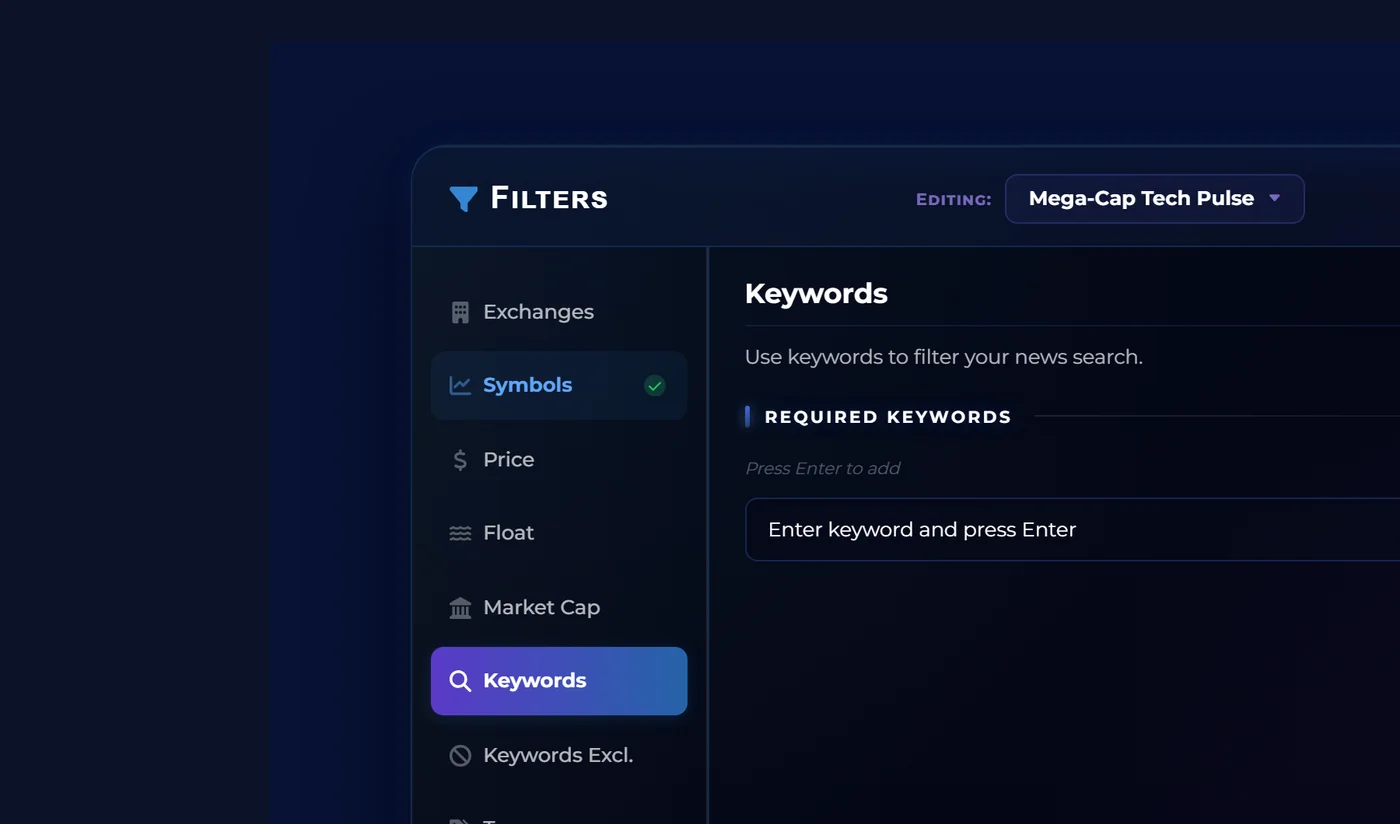
Type a keyword and press Enter to add it. Each keyword becomes a chip you can remove later.
Tip: Each entry becomes one keyword chip. Press Enter, comma, or newline to commit a chip, and the same separators split pasted lists. Without quotes, a chip matches as a substring anywhere in the headline, so trial also matches "preclinical trials". Wrap a chip in double quotes, such as "clinical trial", to match it only on word boundaries. A leading or trailing space inside the chip can also request exact matching. When you set multiple include chips in one saved filter, they behave as alternatives: the headline matches if it contains any one of them. Use the Keywords Excl. tab to subtract terms you do not want; every exclusion chip applies, so any one of them is enough to hide a story.
How many saved filters you get
The number of available saved filters depends on your membership tier. Free and Silver accounts get one saved filter, while Gold and Platinum members get more room to separate different workflows. Saved-filter count and rule access are separate: the Free filter supports Exchanges, and Silver unlocks the other rule types inside that same single saved filter.
Saved Filters per Tier
| Tier | Saved filters | What that means in practice |
|---|---|---|
| Guest | 0 | Sign in with a free account to unlock filters. |
| Free | 1 | One saved filter, limited to the Exchanges rule. Useful for narrowing the feed to a single venue. |
| Silver | 1 | One saved filter with Exchanges, plus Symbols, Keywords, and Keywords Excluded (each capped at 5 entries). Price, Float, Market Cap, Tags, and Rhea-AI require Gold or higher. |
| Gold | 3 | Three saved filters that can run together. Useful when you want one sector watchlist, one market-cap bucket, and one keyword theme at once. |
| Platinum | 5 | Up to five saved filters that can be active together. |
The same limits apply to both live feeds, but each feed stores its own saved filters. Inside each saved filter, individual rule types have their own tier requirements. Exchanges is available to every signed-in account. On the news feed, Silver unlocks Symbols, Keywords, and Keywords Excluded (each capped at 5 entries per saved filter), while Price, Float, Market Cap, Tags, and Rhea-AI require Gold or higher. On the SEC filings feed, Form Types and the other advanced filings tabs require Silver or higher. Locked tabs show a small tier badge so you can see what unlocks them.
How active filters combine
The single most important thing to understand about the new feed is how multiple active filters interact. The rule is straightforward:
Across saved filters, the feed shows everything that matches any active saved filter with rules set. A news story or SEC filing is included if at least one of your active saved filters accepts it.
Within a saved filter, all rules must agree. If a news filter says "NYSE only" and "keyword: earnings", it only matches NYSE earnings stories. If a filings filter says "Form 4" and "NASDAQ", it only matches NASDAQ Form 4 filings.
So if you have a Gold account with three active saved filters, one tuned to a sector, one tuned to a market-cap range, and one tuned to a keyword theme, your feed becomes the union of all three. Each saved filter is its own tight bundle of rules that must all match; across saved filters, matching any one of them is enough. If every active saved filter is empty, the feed shows the same unfiltered stream as if they were all toggled off.
Small details worth knowing
A few things that are not obvious until you have used the new feed for an afternoon:
- Renaming is free. Hit the pencil that appears next to a saved filter's name to give it a more useful label than "Filter #3". Names are local to your account and have no impact on rules.
- Turning every filter off shows the unfiltered feed. There is no separate "no filter" mode. Toggle every saved filter off (or open the funnel and use its toggles) and you are back to the full live stream.
- The Reset button in the editor wipes a single saved filter's rules but does not delete the saved filter itself or its name. Use it when you want to repurpose one.
- The modal is draggable. Grab the header and drag if you want to peek at the feed underneath while you tune rules.
- Splitting the same rule type across saved filters is the trick to stretching them. If you want to watch two non-overlapping symbol lists, two price ranges, two keyword themes on news, or two form-type groups on filings, put each one in its own saved filter rather than trying to fit both inside one. Each saved filter applies all of its own rules together, and the feed shows everything that matches any active one.
Frequently asked questions
What happens to my old saved filter when the system updates?
Your previously saved rules carry over into your first saved filter automatically. If you only ever used one filter under the old system, it lands there intact. You can rename it and start adding more saved filters if your tier supports them.
Do these filters also work on SEC filings?
Yes. The same saved-filter and multi-active behavior applies on SEC Filings Live. The filings feed has its own saved filters and its own rule tabs, including Form Types for SEC forms, but active filings filters combine the same way news filters do.
Can I share or export a filter to another account?
Not yet. Filters are stored on a per-account basis. Renaming, resetting, and switching saved filters all happen within your own account.
How are stories combined when several filters are active?
The feed shows an item if any active saved filter with rules would accept it. Inside a single saved filter, all of its rules must be satisfied. In simple terms: an item must match every rule inside a saved filter, and matching any one active saved filter is enough to appear in the feed. Empty active saved filters are ignored.
How many saved filters do I get on each membership tier?
Free and Silver both get one saved filter, Gold gets three, and Platinum gets five. The Free filter is limited to the Exchanges rule. Silver unlocks Symbols, Keywords, and Keywords Excluded inside that single saved filter, each capped at 5 entries. Price, Float, Market Cap, Tags, and Rhea-AI require Gold or higher. Guests (not signed in) cannot save filters.
Why are some rule tabs greyed out for me?
Specific rule types are gated by membership tier. Exchanges is open to every signed-in account. Silver unlocks Symbols, Keywords, and Keywords Excluded (each capped at 5 entries per saved filter). Price, Float, Market Cap, Tags, and Rhea-AI require Gold or higher. Greyed-out tabs show a small tier badge so you can see exactly what unlocks them.
Does turning a filter on and off lose my rules?
No. Toggling a saved filter off simply removes it from the feed; the rules inside it are kept intact until you edit or reset them yourself.
Related reading
- How to Use Keyword Filters on StockTitan. A deep dive into keyword syntax, exact matches, and exclusions.
- Stock News Live Feed. Use saved filters on real-time company news.
- SEC Filings Live Feed. Use saved filters on real-time SEC filings.
- Platform Update: New Dashboard and Membership Tiers. Context on the Silver, Gold, and Platinum tiers referenced above.
Disclaimer: This article is an educational walkthrough of a StockTitan platform feature. Nothing here constitutes financial or investment advice. Filtering rules are tools for navigating news; investment decisions remain your own.
The information provided in this article is for educational and informational purposes only. It does not constitute financial advice, investment recommendation, or an endorsement of any particular investment strategy. Past performance does not guarantee future results. Investors should conduct their own research and consult with a qualified financial advisor before making investment decisions.